Arctic Download Monitor
The guide
How to set up Arctic Download Monitor step by step, what each setting does, and which values we recommend.
Contents
- Before you start
- Add your first download
- New versions
- Who can download
- Locks
- Form before download
- Private links
- Download limits
- Bots and IP addresses
- Counting and the log
- Overview and statistics
- E-mails and reports
- Templates and buttons
- Downloading page
- Document library
- Shortcodes
- Amazon S3 and Google Drive
- Delivery and folders
- Mailchimp
- Import and export
- Updates
- Troubleshooting
Step 1
Before you start
Arctic Download Monitor adds its own item, Arctic Downloads, to the WordPress admin menu. Under it you find the overview, statistics, the list of downloads, categories and tags, the button designer, the e-mail list, the log, settings and tools.
Choose the link format first
Every download gets a fixed address. Open Settings → Links and display and decide two things before you share any links:
| Setting | Standard | Advice |
|---|---|---|
| Link word | download, so links look like /download/123/ | Keep it. Changing it later breaks links already shared. |
| Identify downloads by | Number (ID) | Choose slug for readable links such as /download/my-plugin/. Links with the number keep working when you switch to slug. |
wp-content/uploads/arctic-downloads, that cannot be opened directly. Files are only delivered through the download link, so the counter, the log and your access rules always apply.Step 2
Add your first download
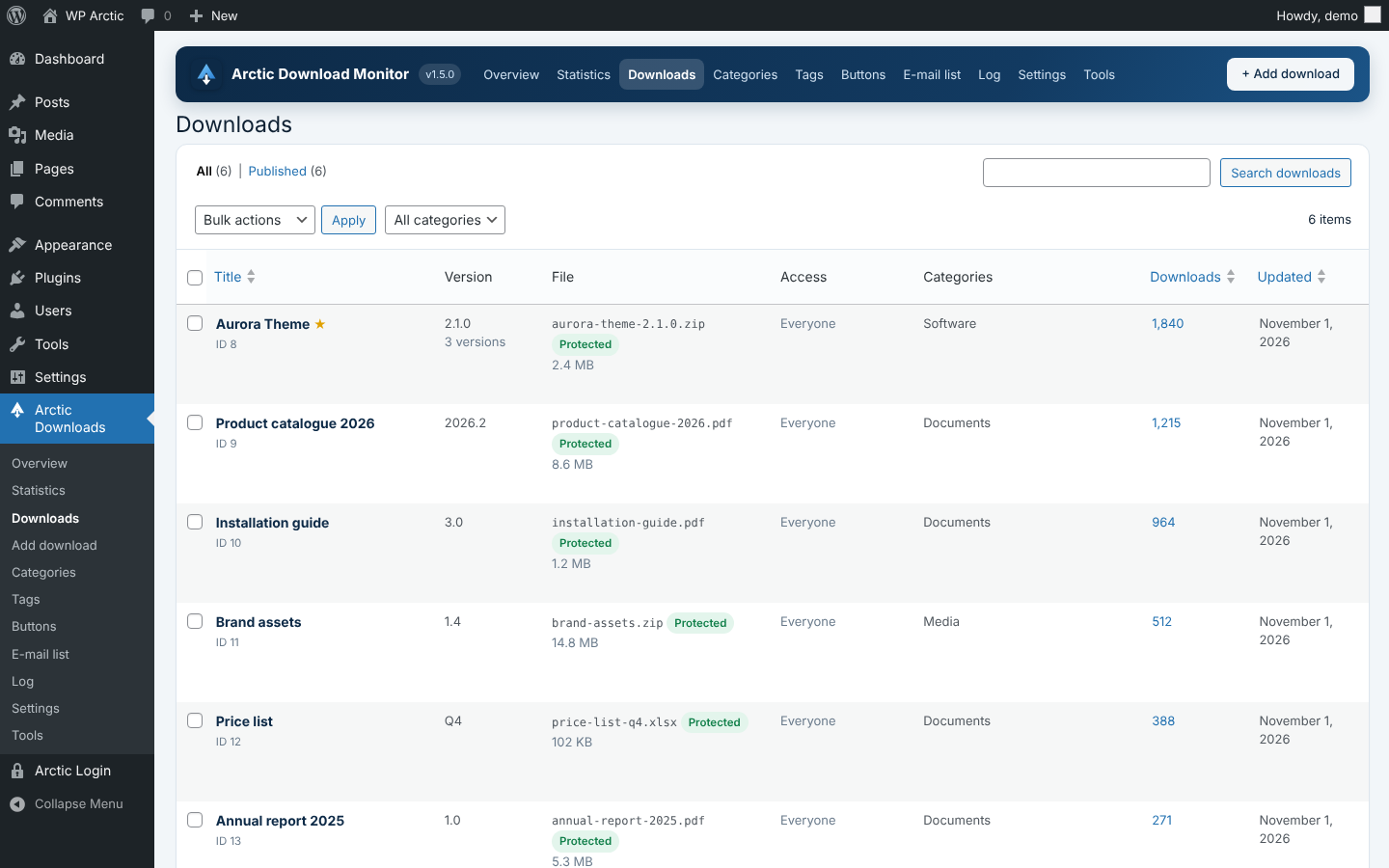
Go to Arctic Downloads → Add download.
- Give the download a title. The slug is filled in for you.
- Write a short description. It is shown in the box template and in lists.
- Under Versions and files, fill in the version number and release date, and choose Upload or choose to add the file. You can also paste the address of a file on another server.
- Leave the status on Published and click Create download.
The box on the right now shows the download link and the shortcode, each with a Copy button, and how many times the file was downloaded in the last 30 days.
| Status | What it means |
|---|---|
| Published | The link works for everyone who is allowed to download. |
| Draft | The link does not work yet. |
| Private | Only managers can download. |
Files
New versions
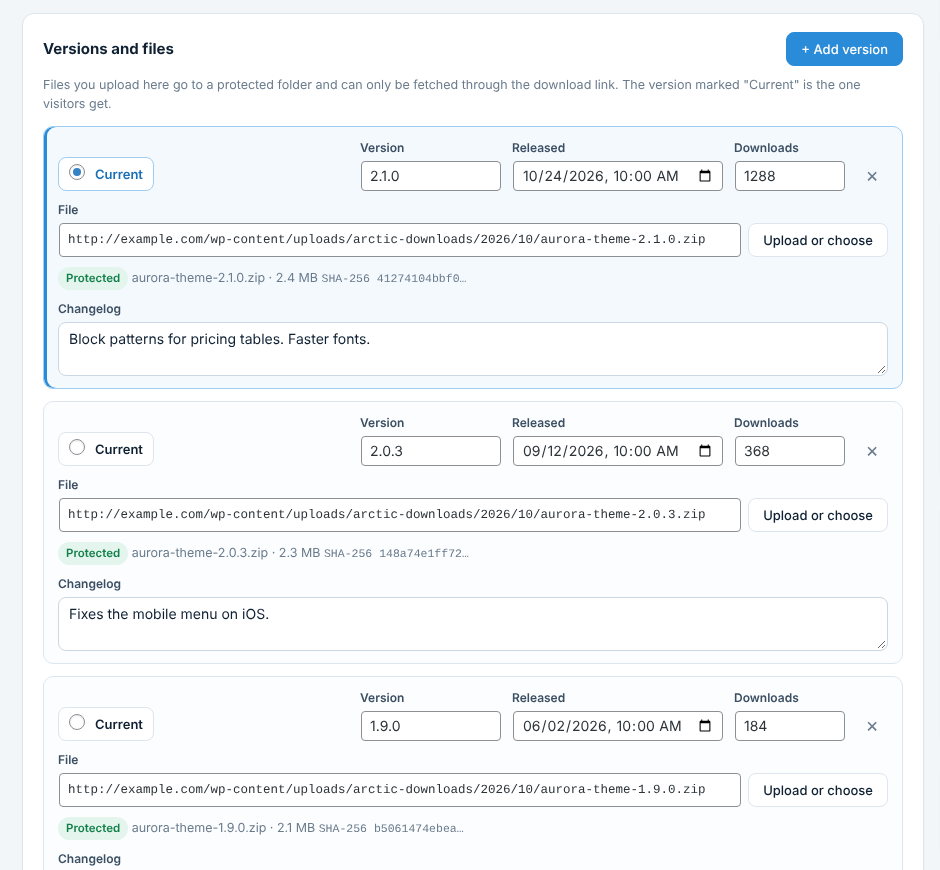
When you release a new version, open the download and click Add version. Fill in the version number, release date and changelog, add the file, and mark the new row as Current. The version marked Current is the one visitors get, so every link, button and list on the site delivers the new file at once.
Each version keeps its own counter, and old versions can still be fetched by number, for example with .
Where a file can live
| Type | How it is delivered |
|---|---|
| Protected | Uploaded through the editor. Only delivered through the download link. |
| Public folder | A file elsewhere in the media library. It can also be opened directly, so the counter can be bypassed. |
| On another server | A web address such as GitHub, Dropbox or a CDN. The download is counted and logged, then the visitor is sent on. |
| Amazon S3 | A file in a bucket, delivered with a signed link that works for a few minutes. See Amazon S3 and Google Drive. |
| Google Drive | A file in a private Drive. Docs, Sheets and Slides are delivered as PDF. |
Protect
Who can download
In the download editor, Who can download has three choices: Everyone, Logged-in users or Only these roles.
When access is refused
Under Settings → Access you choose what visitors see: a simple message page, or one of your own pages. Put Du har ikke adgang til denne download.
Protection against hotlinking
On the same tab, tick Stop other websites from linking straight to your downloads. Clicks coming from another website are refused; visitors who type or paste the link are still let through. Add websites you trust, one domain per line.
Refuse requests that do not say which browser they come from stops many simple scripts. Real browsers always send this.
Protect
Locks
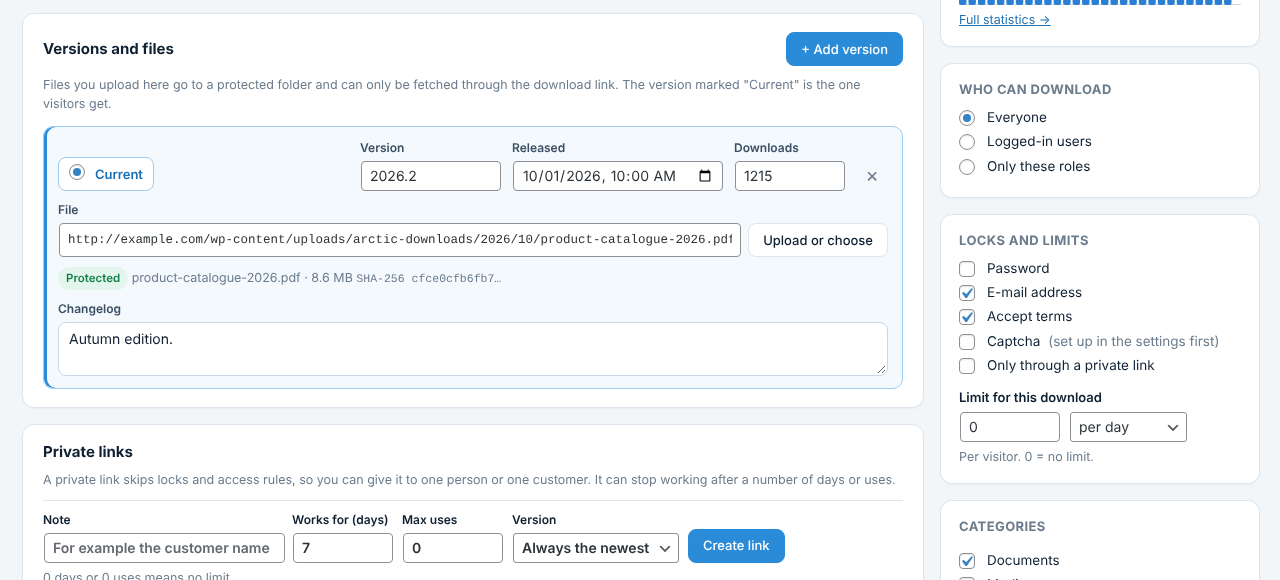
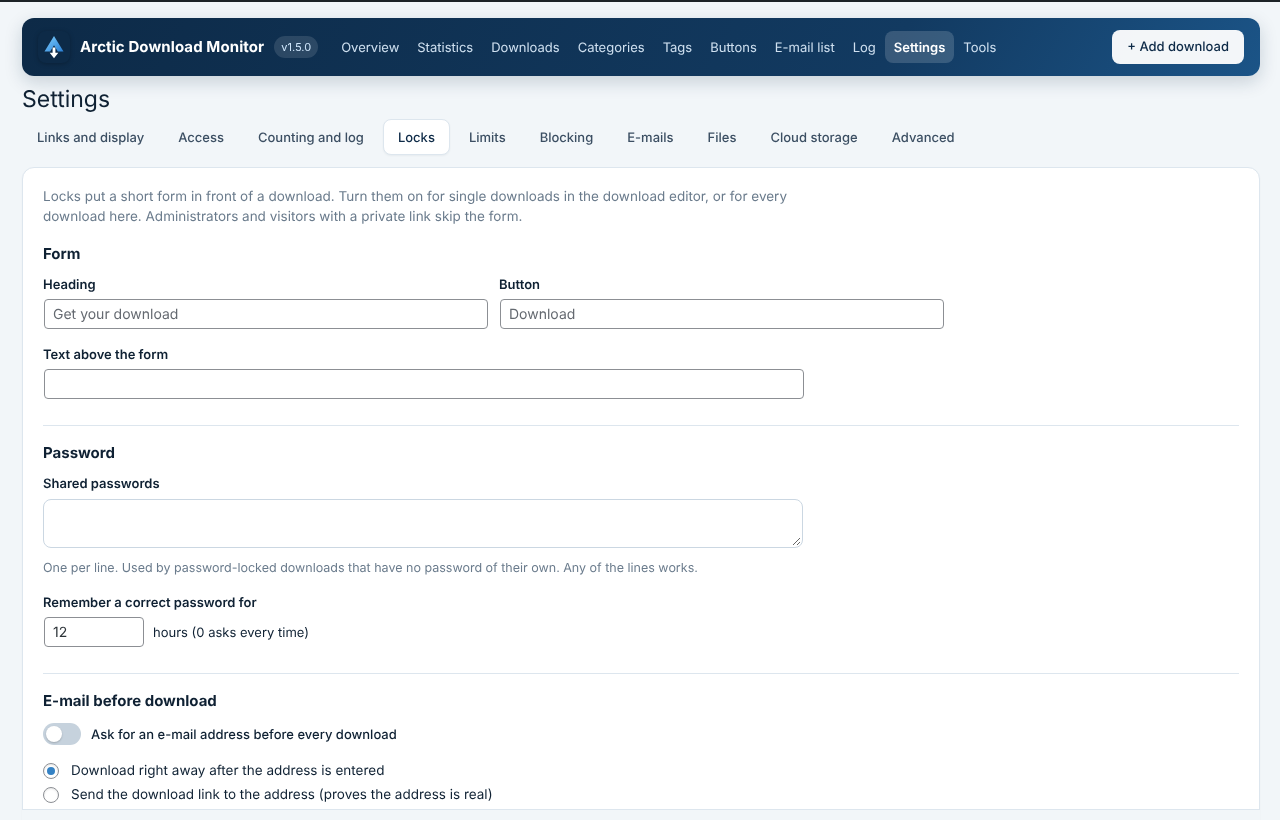
Locks put a short form in front of a download. Turn them on for a single download under Locks and limits in the editor, or for every download under Settings → Locks. Administrators and visitors with a private link skip the form.
| Lock | What the visitor does | Good to know |
|---|---|---|
| Password | Types a password. | Use passwords of the download, or the shared passwords from the settings (one per line). A correct password is remembered for 12 hours by default. |
| E-mail address | Enters an e-mail address. | The file can start right away, or the link is sent to the address to prove it is real. The link in the e-mail works for 24 hours by default. |
| Accept terms | Ticks that they accept your terms. | Link to a page with the terms, or show the text in the form. When the terms change, visitors are asked again. |
| Captcha | Solves a captcha. | Set up Cloudflare Turnstile, reCAPTCHA v2 or v3 under Settings → Locks first. Turnstile is free and recommended. |
| Form | Fills in a form from a form plugin. | See Form before download. The form replaces the other locks. |
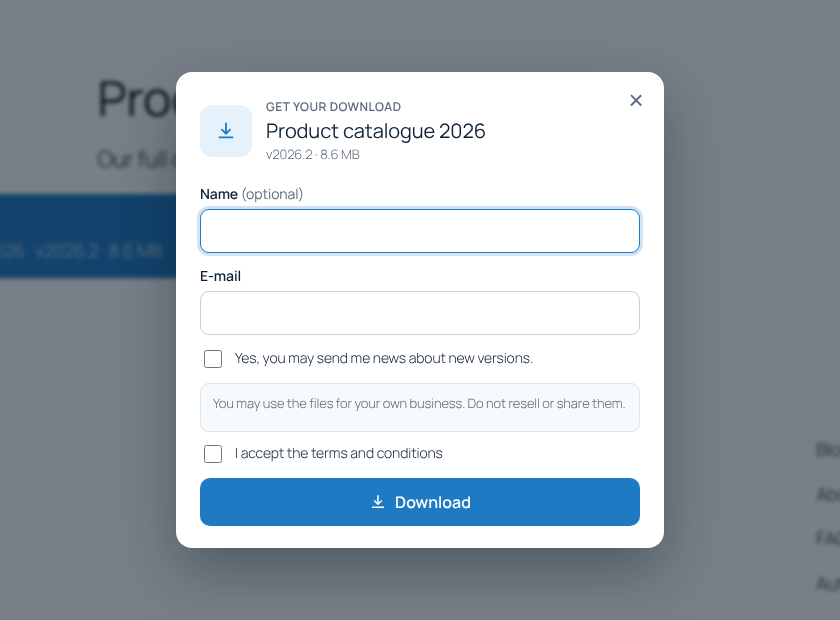
E-mail before download
You can ask for a name too (optional or required), remember the visitor for a number of days, and add a consent checkbox. When the checkbox text is filled in, visitors must tick it, and the text is saved with the address, as GDPR asks. Logged-in users skip the form by default; their own address is saved instead.
Collected addresses are listed under Arctic Downloads → E-mail list, with CSV export. They are included when you use WordPress’ own tools to export or erase a person’s data.
Protect
Form before download
Put a form from Contact Form 7, Gravity Forms, Ninja Forms or WPForms in front of a download. Install one of them, create the form, and choose it under Form before download in the download editor.
The visitor fills in the form, and the file starts when it has been sent. The form plugin’s own e-mails, spam protection and entries work as usual.
Protect
Private links
A private link skips locks and access rules, so you can give it to one person or one customer. Create it under Private links in the download editor:
- Note – for example the customer name.
- Works for (days) and Max uses – 0 means no limit.
- Version – always the newest, or one fixed version.
The list shows how often each link was used and when it expires, and you can switch a link off or delete it. Tick Only through a private link under Locks and limits to make a download that only works with such a link.
Protect
Download limits
Limit how many files a visitor can download. Guests are counted per IP address, logged-in users per user.
| Where | Setting |
|---|---|
| Settings → Limits → Guests | At most a number of downloads per day, week or month. 0 = no limit. |
| Settings → Limits → Logged-in users, by role | A limit for each role. A user with several roles gets the most generous limit. Administrators are never limited. |
| Download editor → Limit for this download | A limit per visitor for one download only. |
Protect
Bots and IP addresses
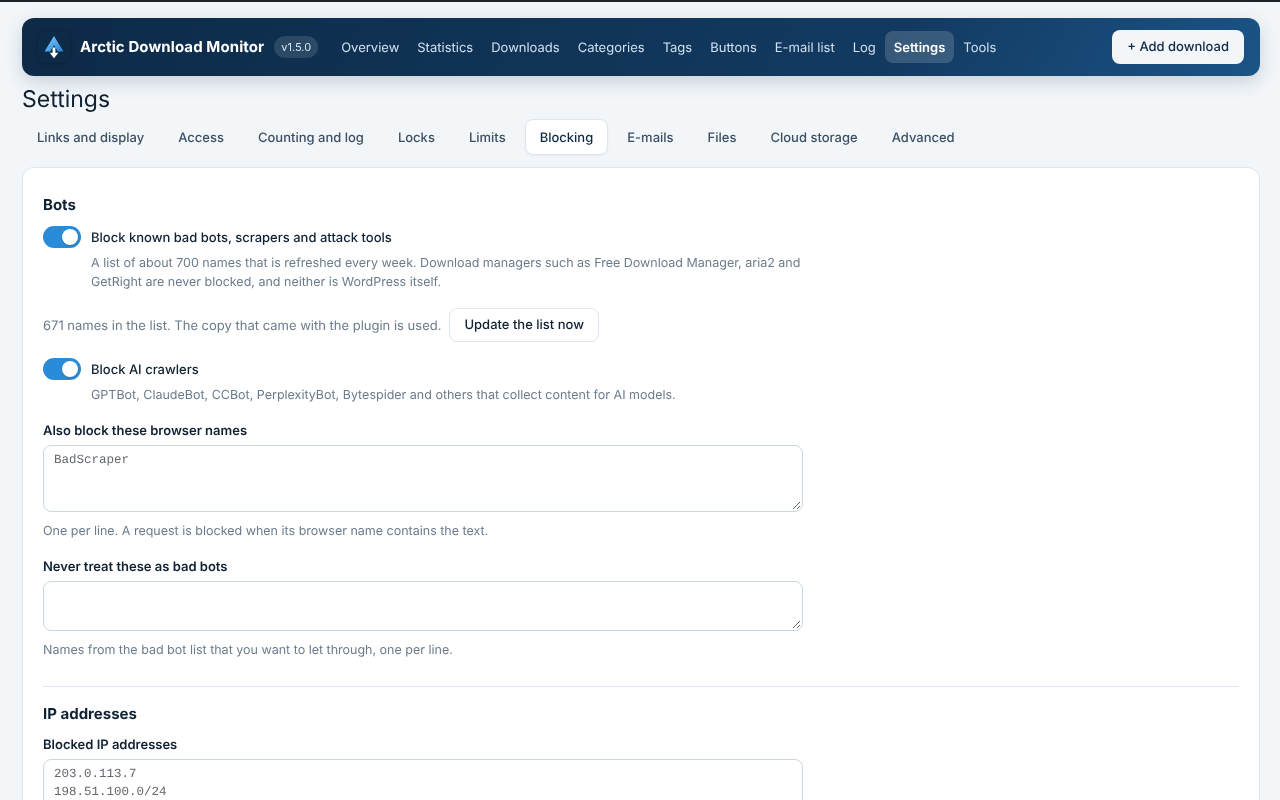
Settings → Blocking keeps unwanted visitors away from your files.
| Setting | Standard | Advice |
|---|---|---|
| Block known bad bots, scrapers and attack tools | On | Keep it on. The list of about 700 names is refreshed every week. Download managers and WordPress itself are never blocked. |
| Block AI crawlers | Off | Turn on if you do not want GPTBot, ClaudeBot, CCBot, PerplexityBot, Bytespider and others to collect your files. |
| Also block these browser names | Empty | One per line. A request is blocked when its browser name contains the text. |
| Blocked IP addresses | Empty | One per line: a single address, a range such as 198.51.100.0/24, or from-to. IPv6 works too. Text after # is a note. |
| Never block these IP addresses | Empty | Your office or your own server. The page shows your current address. |
Administrators are never blocked. Blocked requests are logged, so you can see them under Statistics.
Statistics
Counting and the log
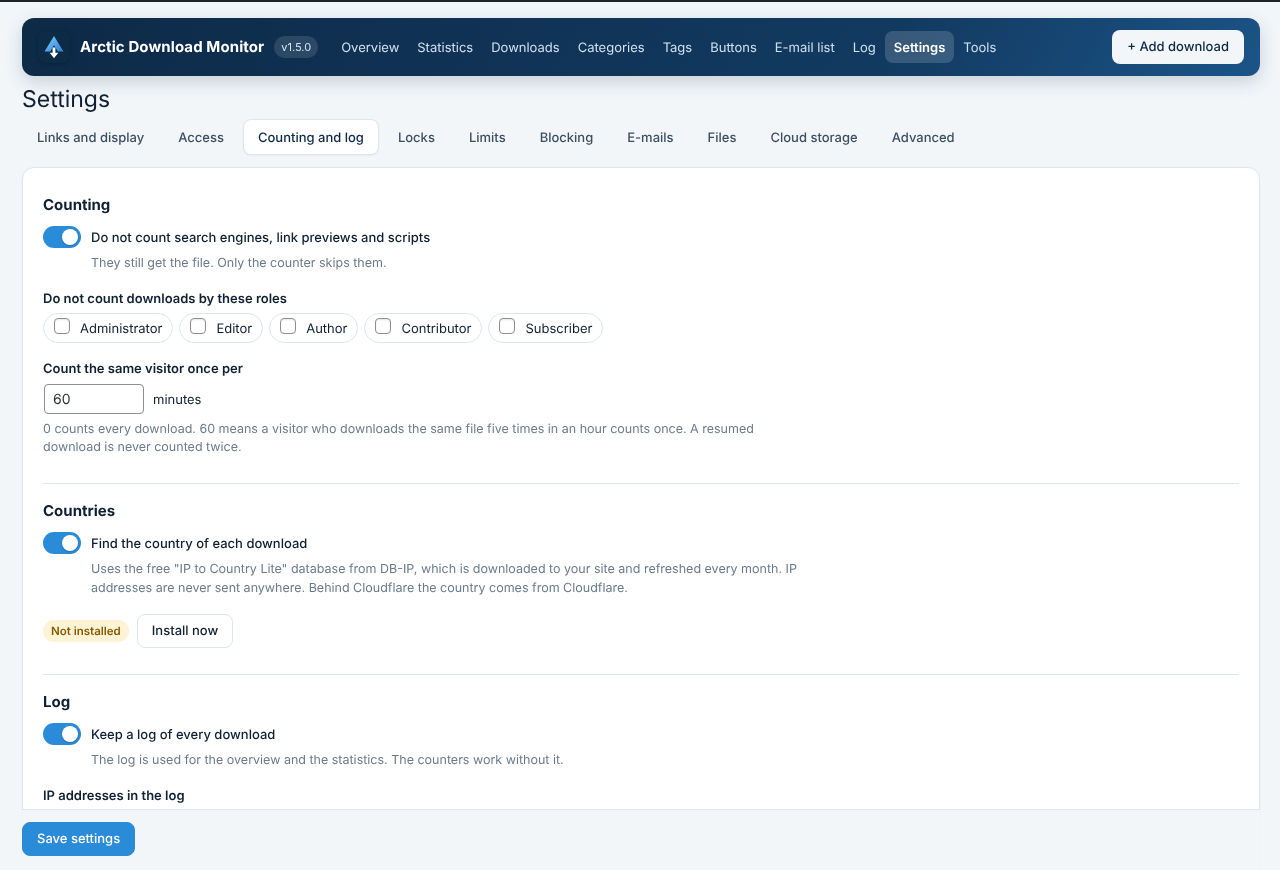
Settings → Counting and log decides what is counted and what is kept.
| Setting | Standard | Advice |
|---|---|---|
| Do not count search engines, link previews and scripts | On | Keep it on. They still get the file; only the counter skips them. |
| Do not count downloads by these roles | None | Tick Administrator and Editor so your own tests do not count. |
| Count the same visitor once per | 0 minutes | 60 means five downloads of the same file within an hour count once. A resumed download is never counted twice. |
| Keep a log of every download | On | The overview and the statistics use the log. The counters work without it. |
| IP addresses in the log | Shortened | Shortened (192.168.1.0) is recommended for GDPR. You can also store full addresses or none. |
| Where the visitor IP comes from | Direct connection | Only change this behind Cloudflare or another proxy. The headers can be faked otherwise. |
| Delete log entries older than | 0 days (keep everything) | 365 days is a sensible limit for most sites. |
Countries
Find the country of each download uses the free “IP to Country Lite” database from DB-IP. It is downloaded to your own site and refreshed every month, so IP addresses are never sent anywhere. Behind Cloudflare the country comes from Cloudflare. Click Install now the first time.
Statistics
Overview and statistics
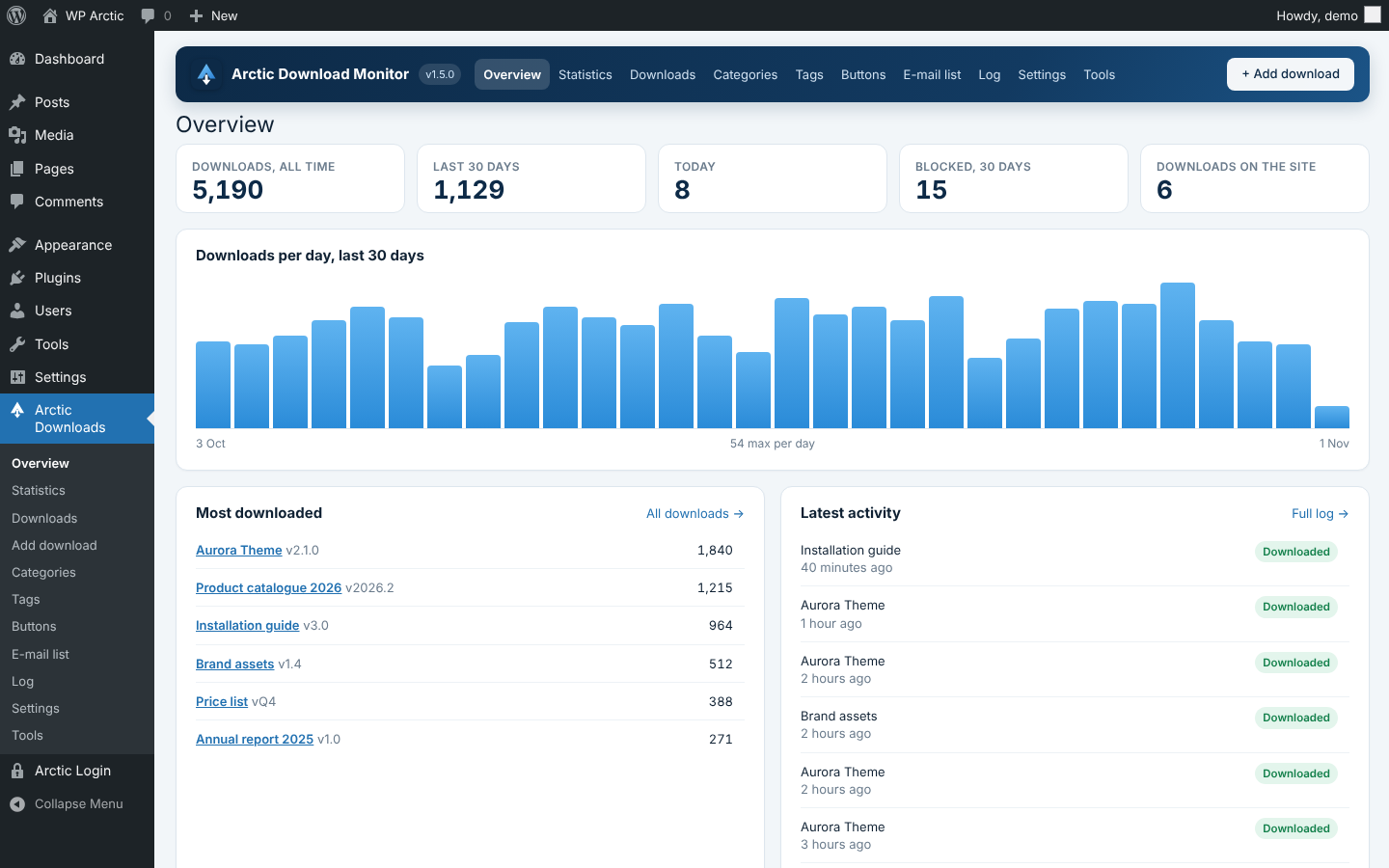
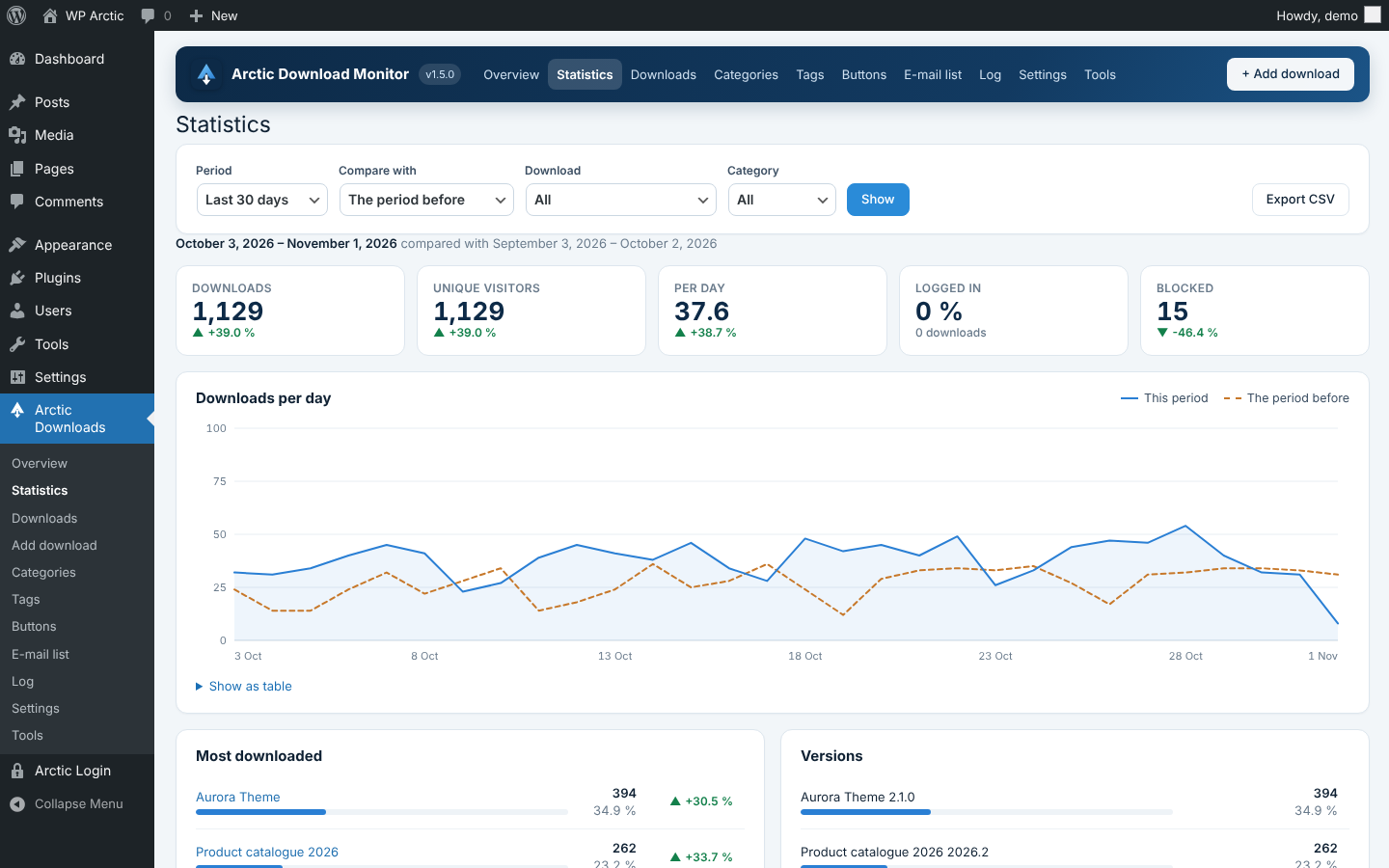
Arctic Downloads → Overview shows downloads per day, the most downloaded files and the latest activity. A small version sits on the WordPress dashboard.
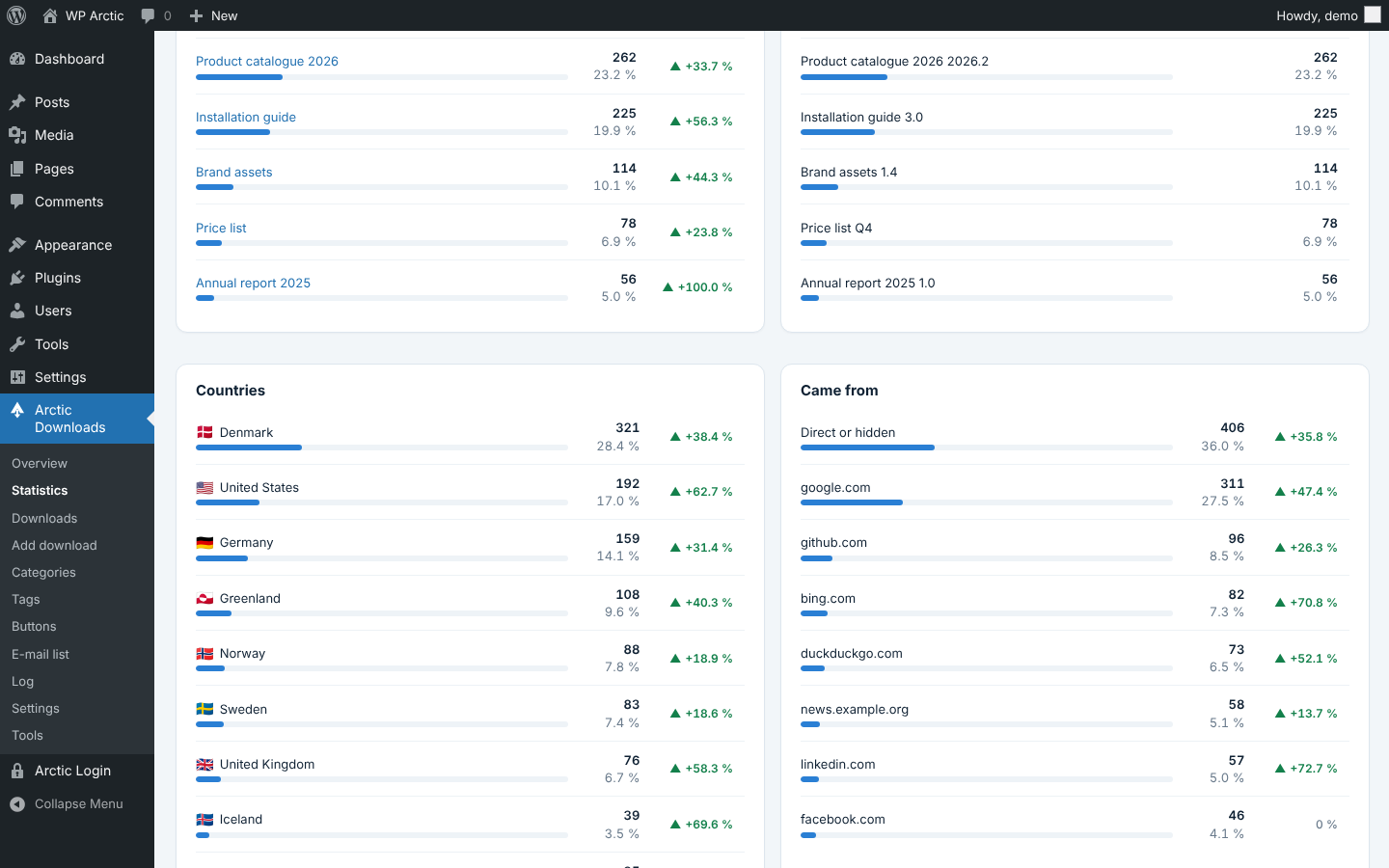
Statistics goes deeper: choose a period and compare it with the one before. You see downloads, unique visitors, versions, countries, the websites visitors came from, browsers, systems and logged-in users, each with CSV export. Every download also has its own statistics, opened from the list or the editor.
Log lists every download and blocked request, with filters and CSV export.
Statistics
E-mails and reports
Under Settings → E-mails:
- E-mail when a file is downloaded – for every download, or only for downloads where “E-mail me when this is downloaded” is ticked in the editor. Set “At most one e-mail per download every … minutes” to avoid floods.
- Report – every morning, every Monday or the first day of each month. Downloads, visitors and blocked requests compared with the period before, the most downloaded files, countries and referrers.
Leave “Send to” empty to use the site’s administration e-mail, and use Send a test e-mail to check that mail arrives.
Display
Templates and buttons
Under Settings → Links and display you choose the default template and button style, whether the version, size and download count are shown with the button, and whether links open in a new tab. Each download can override this.
| Template | Shows |
|---|---|
| button | A download button. |
| box | Image, title, short description and a button. |
| link | A plain text link. |
| title | The title only. |
| filename | The file name. |
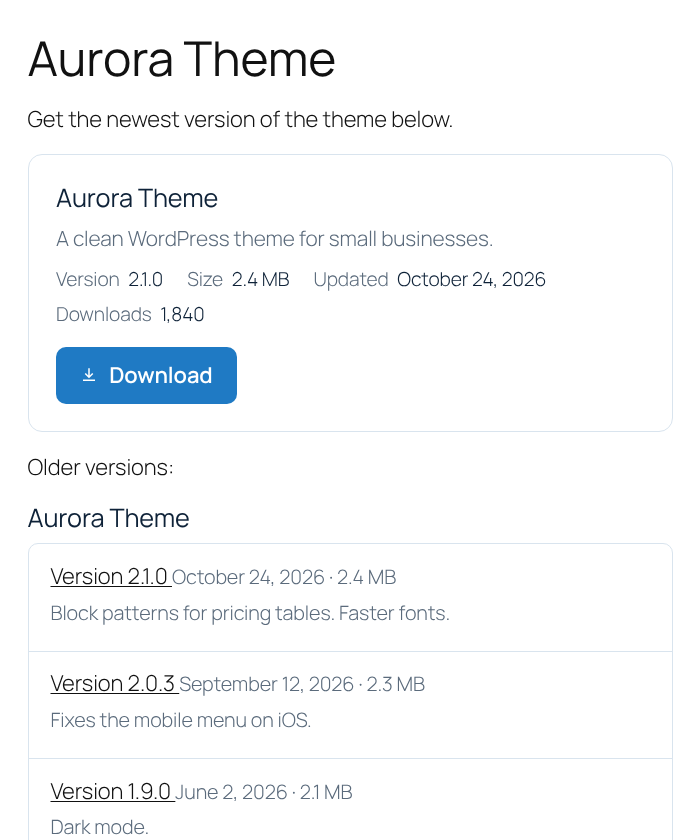
| versions | A list of all versions. |
To change a template, copy it from the plugin’s templates folder to a folder called arctic-download-monitor in your theme.
Button designer
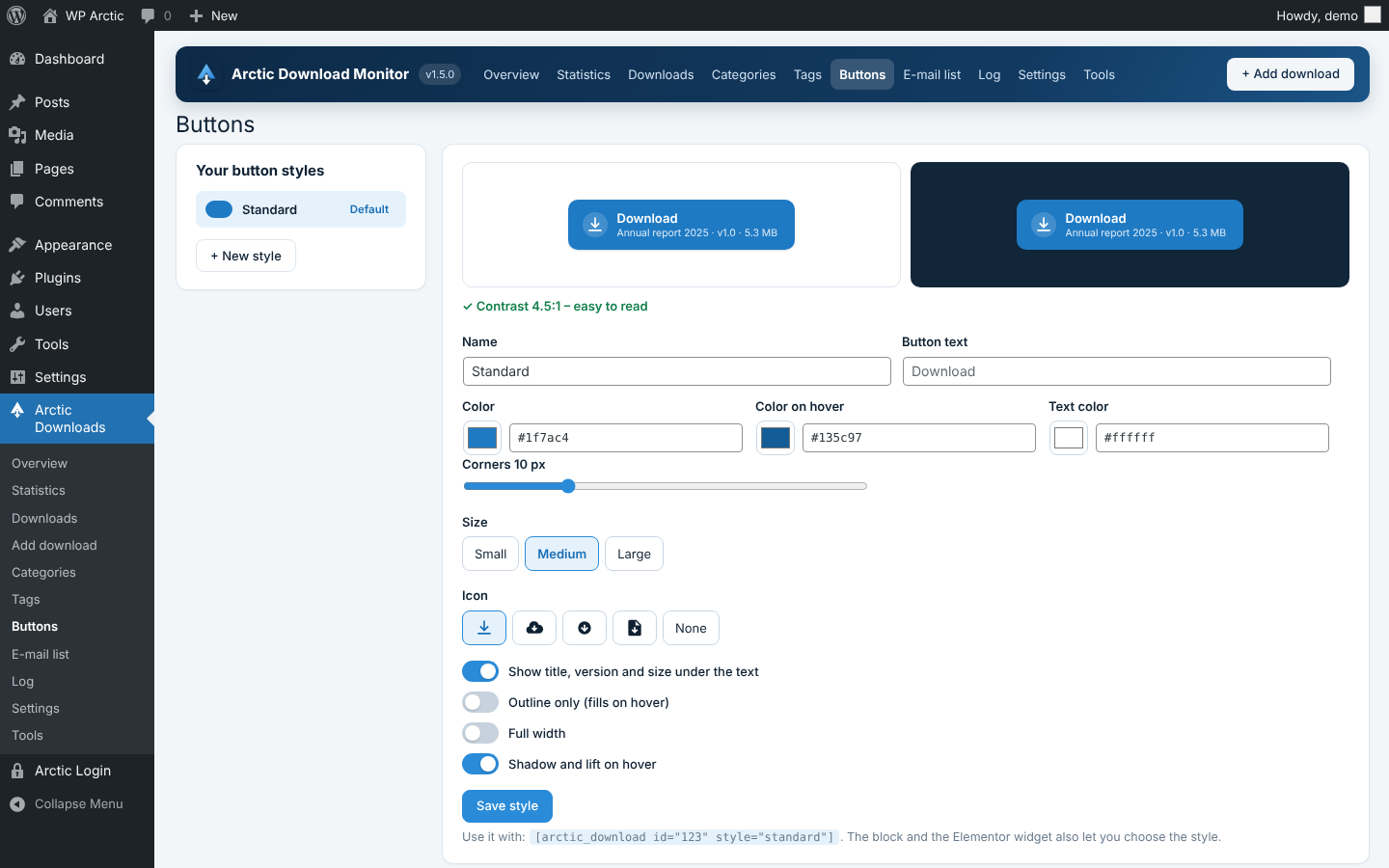
Arctic Downloads → Buttons lets you design your own button styles with a live preview and a contrast check. Choose a style as the default, or per button with the shortcode.
Display
Downloading page
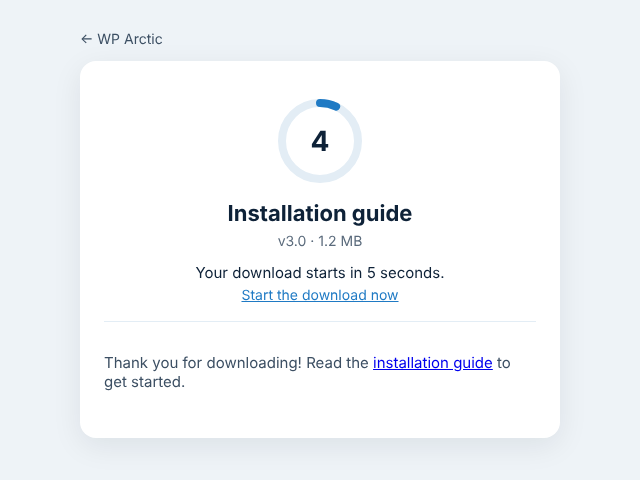
Show a page with a short countdown before the file starts, for example with a thank-you, a link to the guide or a donation button. Programs and update checks always get the file directly.
- Turn it on under Settings → Links and display → Downloading page: for every download, or only where it is ticked in the editor.
- Choose the number of seconds (5 by default) and the text under the countdown.
- To use one of your own pages, choose it and put
where the countdown should be.
Display
Document library
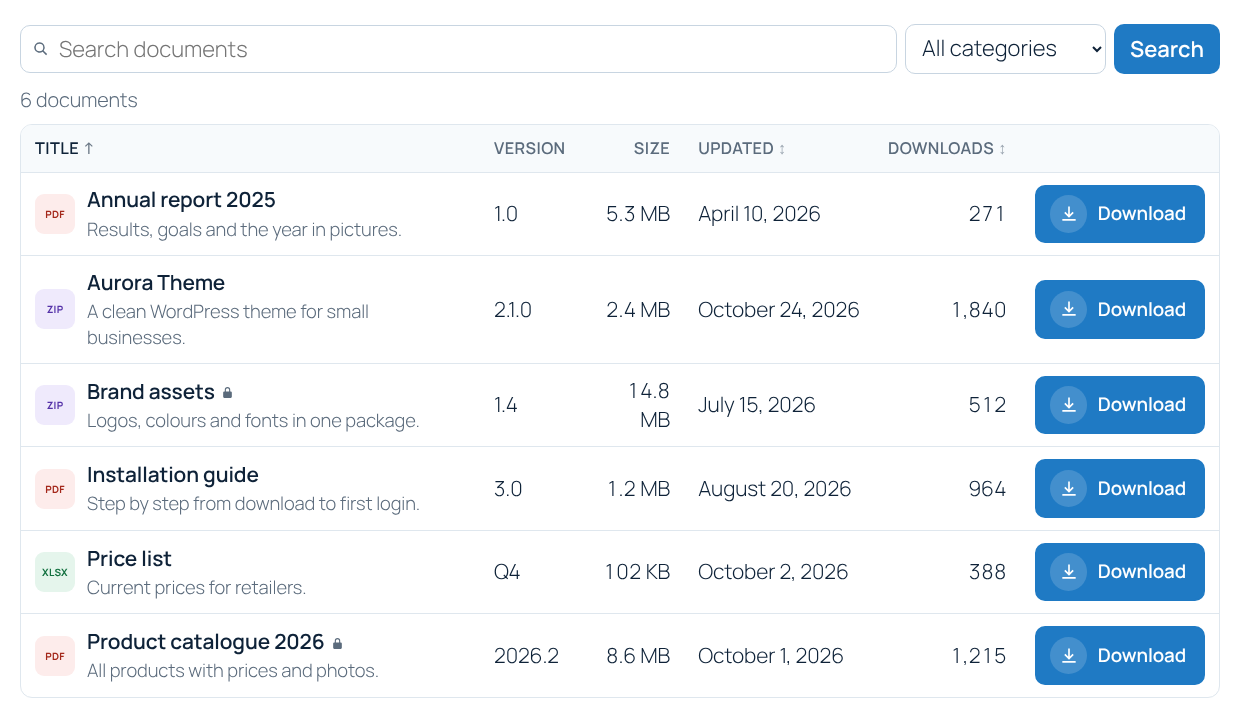
Show all your downloads as a table, grid or list, with search, filters, sorting and pages. Use the shortcode, the “Arctic Download” block or the Elementor widget.
5 documents
Title↕ Version Size Updated↕ Downloads↑ Download 2.6.0 2.7 MB November 2, 2026 0 Download 1.46.0 3.8 MB November 2, 2026 0 Download 1.7.1 329 KB November 1, 2026 1 Download 1.5.0 258 KB November 1, 2026 1 Download 1.2.1 47 KB November 4, 2026 2 Download
| Option | Values |
|---|---|
| layout | table, grid, list |
| columns | title, version, size, date, count, category, type |
| category, tag, featured | Show only some downloads |
| orderby | title, date, count |
| per_page, search, filters | Paging, search box and filter menus |
| hide_restricted | Leave out downloads the visitor cannot get |
Display
Shortcodes
| Shortcode | Shows | ||||||||||||||||||||||||||||||||||||
|---|---|---|---|---|---|---|---|---|---|---|---|---|---|---|---|---|---|---|---|---|---|---|---|---|---|---|---|---|---|---|---|---|---|---|---|---|---|
| One download. Options: template, version, label, class. | |||||||||||||||||||||||||||||||||||||
| A list. Options: category, tag, featured, orderby (date, title, count, rand), order, limit, template, layout (list, grid), include, exclude. | |||||||||||||||||||||||||||||||||||||
| One value: title, count, version, size, url, filename, filetype, date, changelog and more. | |||||||||||||||||||||||||||||||||||||
| 5 documents
| The document library. | ||||||||||||||||||||||||||||||||||||
| The countdown, on your own downloading page. | |||||||||||||||||||||||||||||||||||||
Du har ikke adgang til denne download. | Why access was refused, on your own no access page. |
In the block editor, use the Arctic Download block. In Elementor, search for “Arctic” in the widget panel.
Files
Amazon S3 and Google Drive
Amazon S3 and S3-compatible storage
Keep large files in a bucket and let visitors fetch them straight from there with a signed link. Works with Amazon S3, Cloudflare R2, DigitalOcean Spaces, Wasabi and Backblaze B2. The bucket can stay private.
- Create a key that may only read and list the bucket (
s3:GetObjectands3:ListBucket). - Fill in the access key ID, secret, region and bucket under Settings → Cloud storage. Leave the endpoint empty for Amazon; for Cloudflare R2 use the region
auto. - Save, then click Test the connection.
Signed links work for 10 minutes by default. In the download editor you can now pick files in the bucket.
Google Drive
- In Google Cloud Console, create a project, turn on the Google Drive API and create an OAuth client of the type “Web application”.
- Add the redirect address shown on the settings page under “Authorized redirect URIs”.
- Paste the client ID and secret, save, and click Connect Google Drive.
The site gets read-only access to one Google account. Files stay private in the Drive and are passed on to the visitor.
Files
Delivery and folders
Settings → Files controls how files leave your server.
| Delivery | When to use it |
|---|---|
| PHP streams the file | Works everywhere, with resumable downloads. The standard. |
| X-Sendfile | Apache with mod_xsendfile, or LiteSpeed. The web server sends large files and saves PHP memory and time. |
| X-Accel-Redirect | Nginx. Needs a matching internal location; the settings page shows the rule. |
Only choose the last two if your host has set them up. Send visitors on to files stored on other servers is needed for files on GitHub, Dropbox or a CDN; the download is still counted first.
Allowed folders
Files on your server are only delivered from allowed folders. Add extra folders, such as a folder outside the web root, one full server path per line. PHP files and hidden files are never delivered.
More
Mailchimp
Send the addresses from the e-mail lock to an audience in Mailchimp. Under Settings → Locks → Mailchimp:
- Paste the API key (Mailchimp: Profile → Extras → API keys) and click Get audiences.
- Choose the audience.
- Keep Double opt-in on: Mailchimp sends an e-mail, and the address is only added when the visitor confirms it. Recommended in the EU.
With a newsletter checkbox text, only visitors who tick the box are added. Without it, every address is added, so the download needs a subscription. You can also tag addresses with the download’s title.
More
Import and export
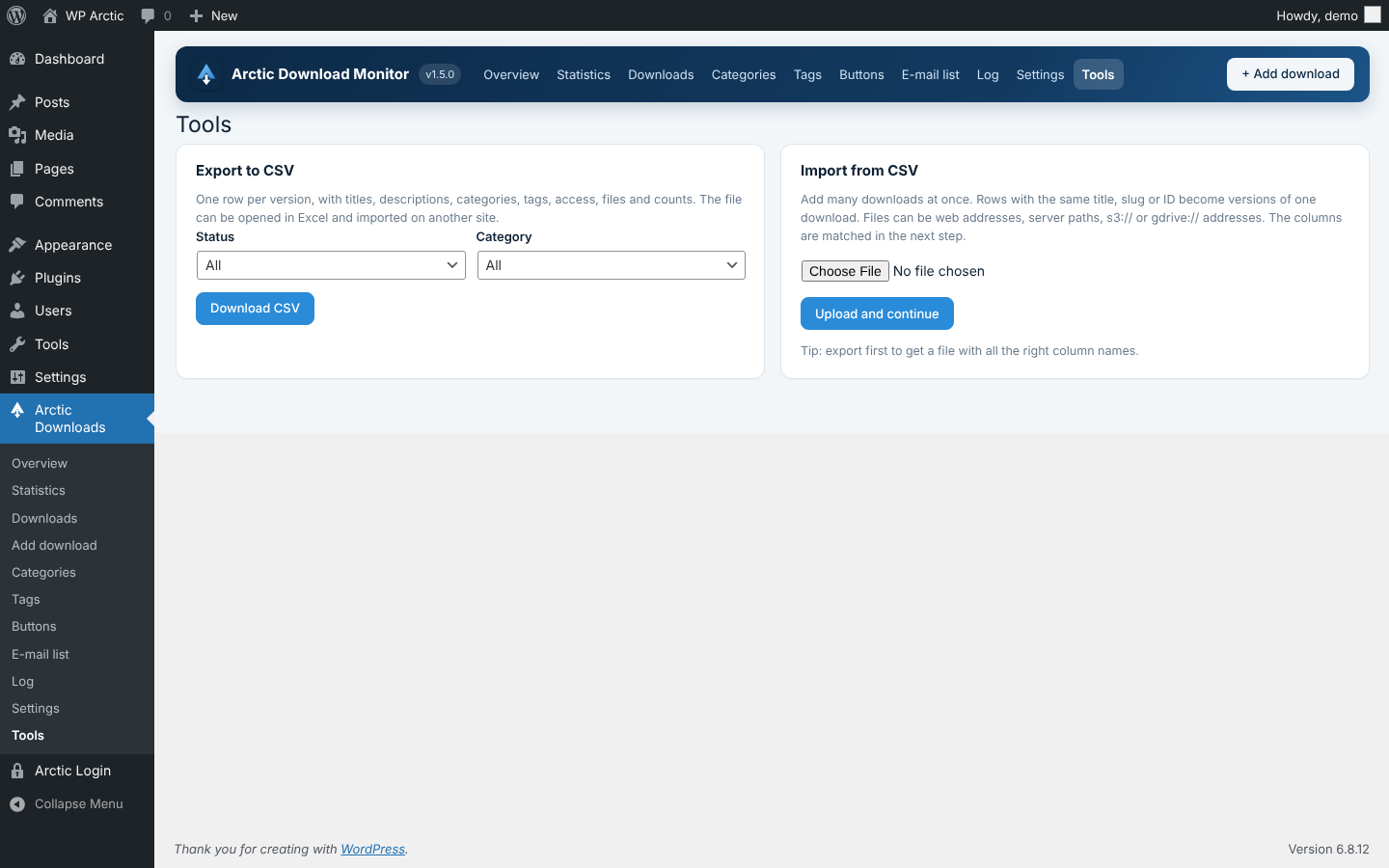
Arctic Downloads → Tools moves downloads between sites.
- Export to CSV gives one row per version, with titles, descriptions, categories, tags, access, files and counts.
- Import from CSV adds many downloads at once. Rows with the same title, slug or ID become versions of one download. Files can be web addresses, server paths,
s3://orgdrive://addresses.
After uploading the file you match the columns, choose whether existing downloads are updated, and run Test first before the real import.
Moving from Download Monitor
Export your downloads to CSV from the old plugin, then import the file here and match its columns. Tip: export from Arctic Download Monitor first to see all column names.
More
Updates
New versions of Arctic Download Monitor show up on the Plugins and Updates screens like any other update, with “View details”, “Update now” and automatic updates. WordPress asks wparctic.com about twice a day; only the plugin name is sent, not your site’s address.
Under Settings → Advanced you choose whether downloads, versions, the log and the settings are deleted when the plugin is deleted. Uploaded files are never deleted.
Help
Troubleshooting
| Problem | What to do |
|---|---|
| The download link gives “page not found” | Go to Settings → Permalinks and click Save once, so WordPress learns the download address. |
| The counter does not go up | Check that your role is not excluded under Counting and log, and that you did not download the same file within the “once per” window. |
| Large files stop half way | Choose X-Sendfile or X-Accel-Redirect if your host supports it, or move the file to S3. |
| Visitors from another site are refused | Hotlink protection is on. Add their domain under “Websites that may link to your downloads”. |
| No e-mails or reports arrive | Install an SMTP plugin and use “Send a test e-mail”. |
| A form-locked download starts without the form | The form plugin is not active. Activate it again. |