WordPress plugin
Arctic Login
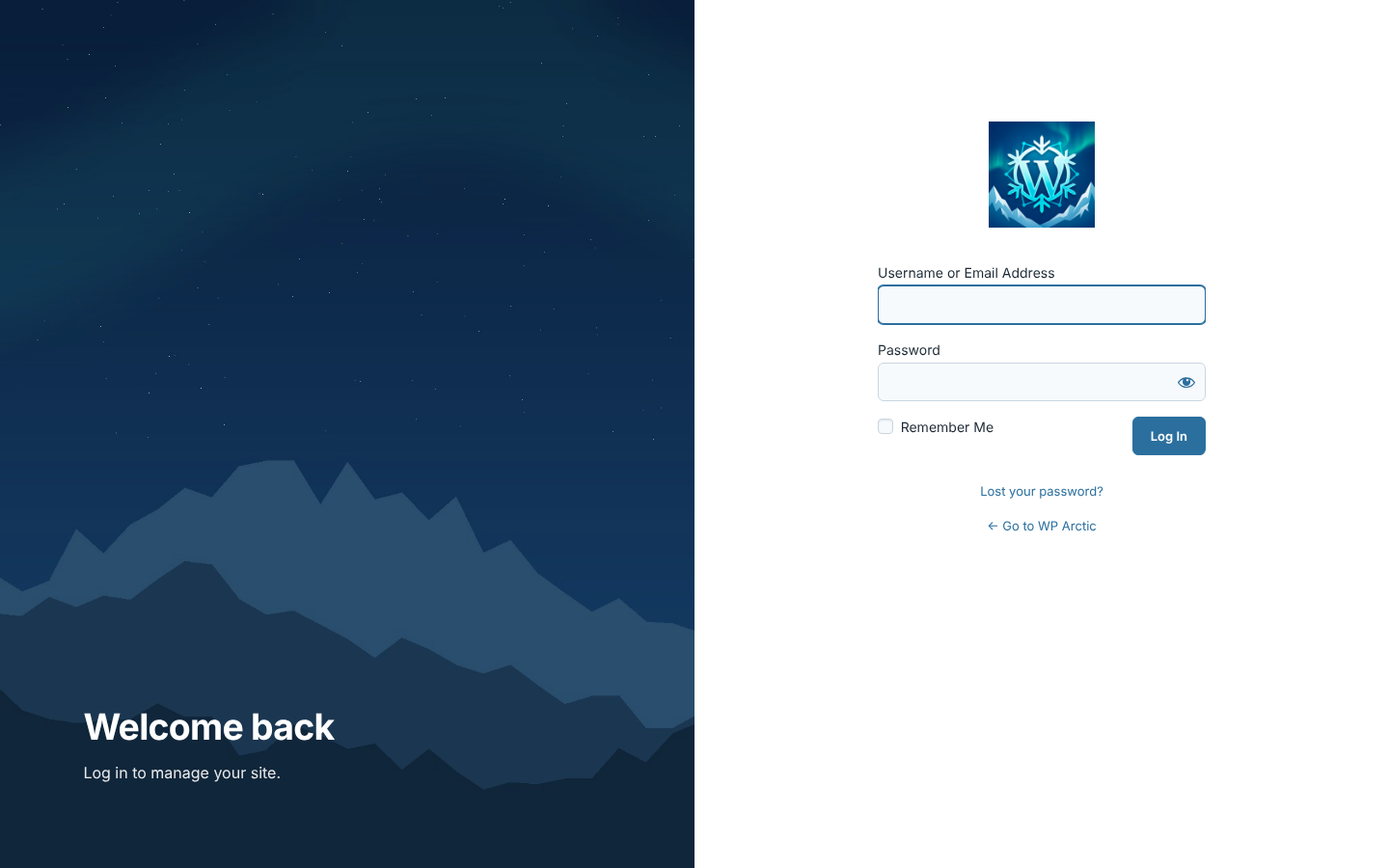
Hide wp-admin and wp-login.php behind your own login address, control where users land after login and logout, and give the login page your own design.
Three tools in one
Everything around the WordPress login
Hide login and admin
Move the login page to an address only you know. Bots hitting /wp-login.php find nothing.
Redirects
Choose where users go after login and logout, per user role.
Login page design
Layouts, colour presets, your logo and background, with a live preview.
Get started
Up and running in four steps
After activation you find everything under Arctic Login in the WordPress admin menu.
Install
Go to Plugins → Add New → Upload Plugin, choose the zip file you downloaded and click Install Now.
Activate
Activate the plugin. Nothing changes on your site until you switch a feature on.
Open the settings
Click Arctic Login in the admin menu. There are three tabs: Hide login, Redirects and Login page design.
Switch it on
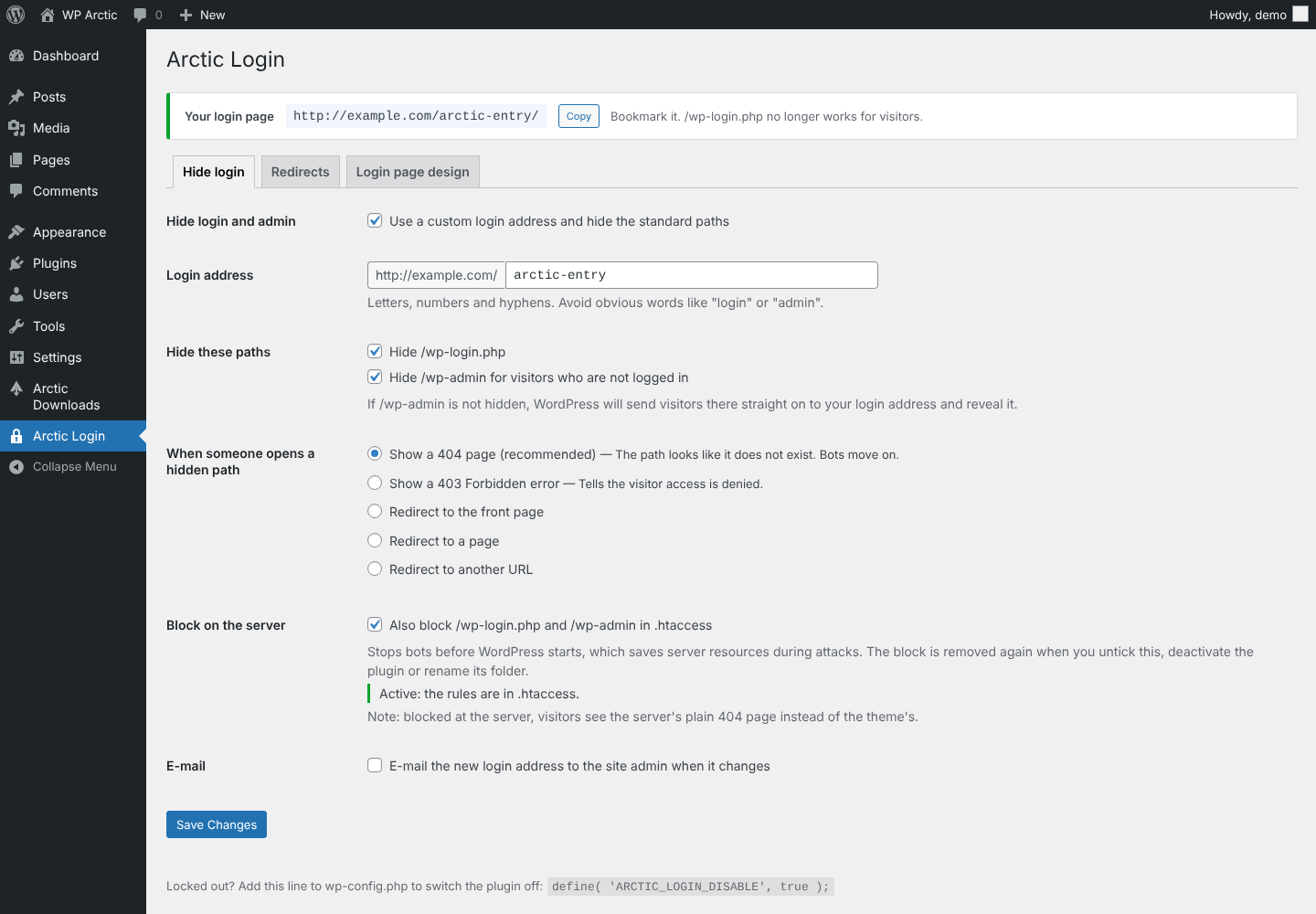
Choose your login address, tick Hide login and admin and save. Bookmark the new address.
Hide login and admin
Your login page, at your address
Pick a login address such as /log-ind/. The standard paths stop working for visitors who are not logged in.
- /wp-login.php and /wp-admin are hidden
- /login, /admin and /dashboard no longer redirect to the login page
- Hidden paths show your site's own 404 page, or 403, or a redirect of your choice
- Optional: block /wp-login.php and /wp-admin in .htaccess, so bots are stopped before WordPress even starts (Apache and LiteSpeed)
- Lost password, logout and reset e-mails follow the new address automatically
- The new address is e-mailed to the site admin when it changes
- Works with and without pretty permalinks
Redirects
Send everyone to the right place
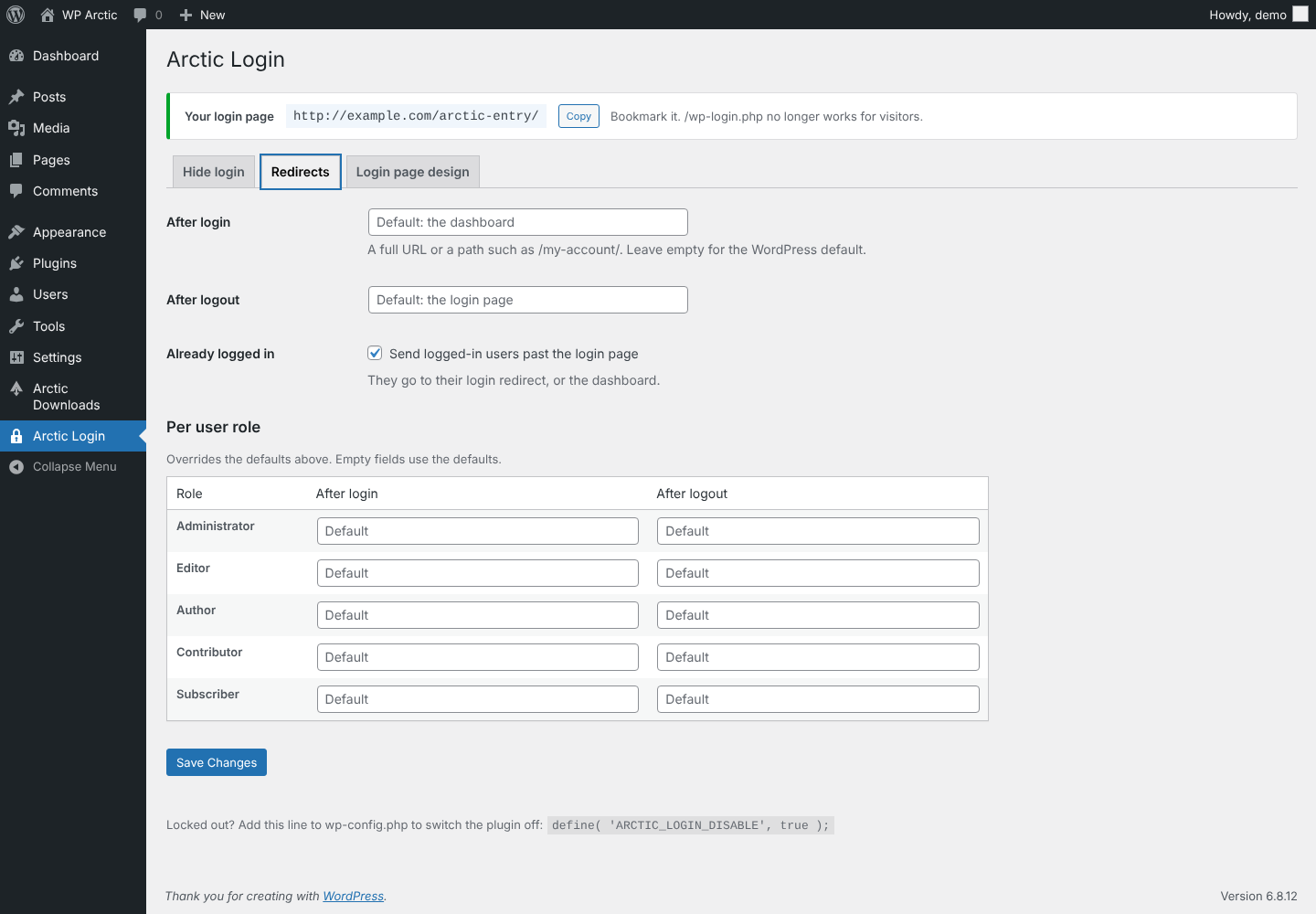
Set a default page after login and after logout, and override it for each user role.
- Default login and logout destinations
- Separate redirects per user role, e.g. customers to My Account
- Logged-in users skip the login form
- Full URLs or relative paths such as /my-account/
Login page design
A login page that looks like your site
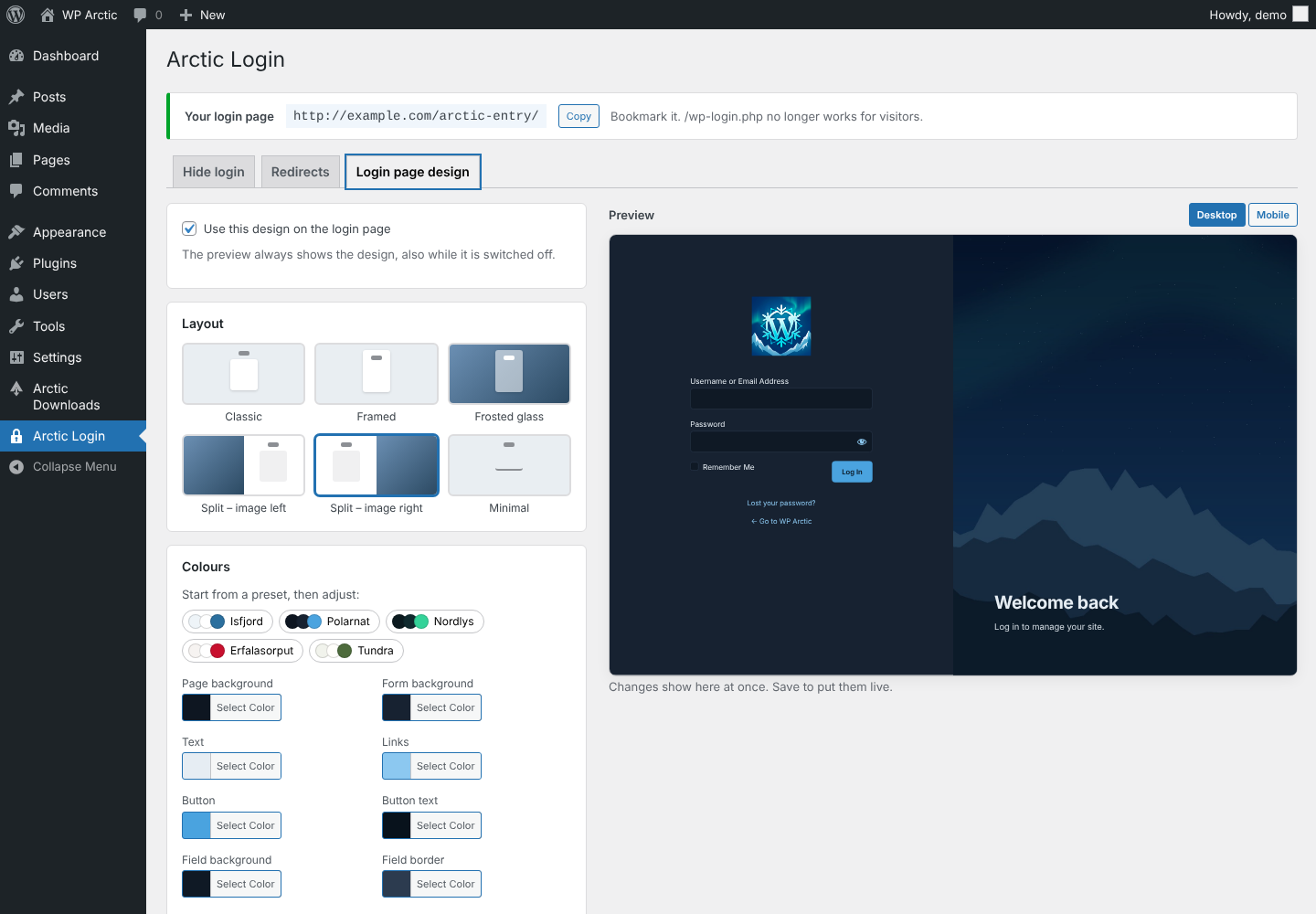
Style the login page without touching code, and watch the changes in a live preview before you save.
- Six layouts, from Classic to Split and Frosted glass
- Five colour presets: Isfjord, Polarnat, Nordlys, Erfalasorput and Tundra
- Your logo or site icon. Never the WordPress logo
- Background image with blur and colour overlay
- Hide the "Go to site" link, language switcher and privacy link
- Custom CSS and live preview for desktop and mobile
Works on mobile
Looks right on every screen
Every layout adapts to phones and tablets. The split layouts tuck the image away on small screens, so the login form always gets the room it needs.
- Responsive on phones, tablets and desktops
- Check the mobile view in the live preview before you save
- Your logo, colours and text follow along
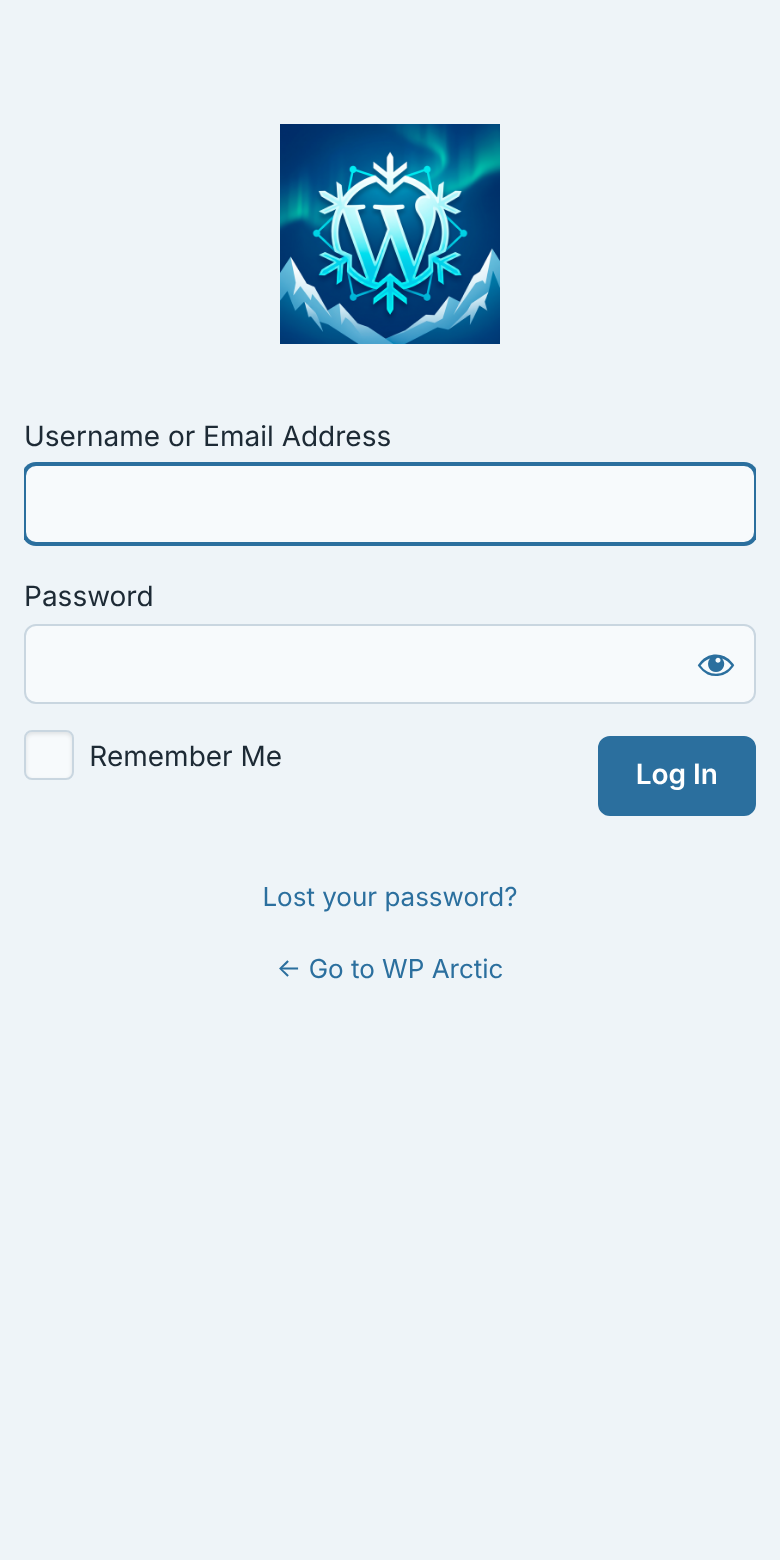
Layouts
Six layouts to start from
Classic
The familiar WordPress form, in your colours.
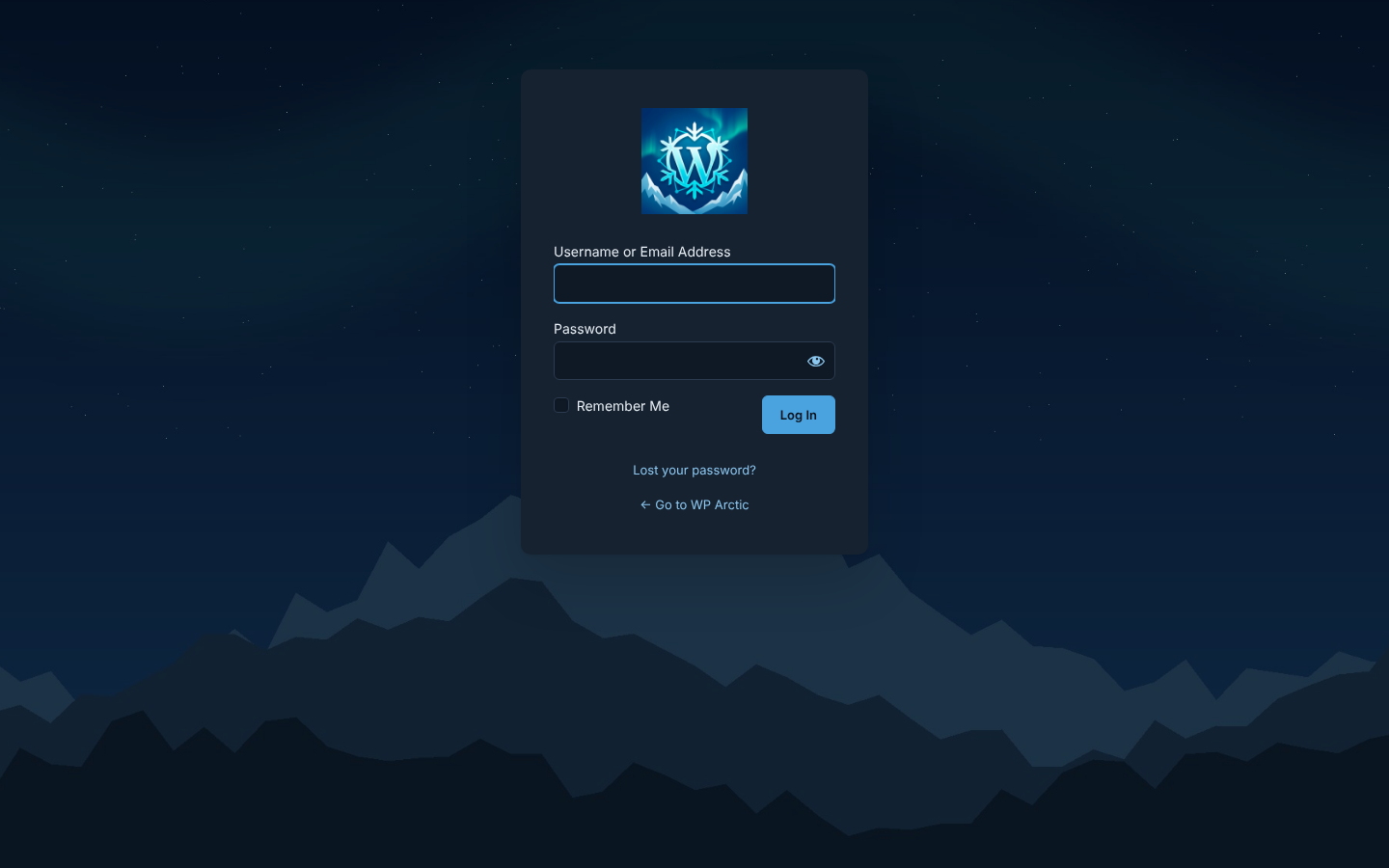
Framed
Logo and form together on one clean card.
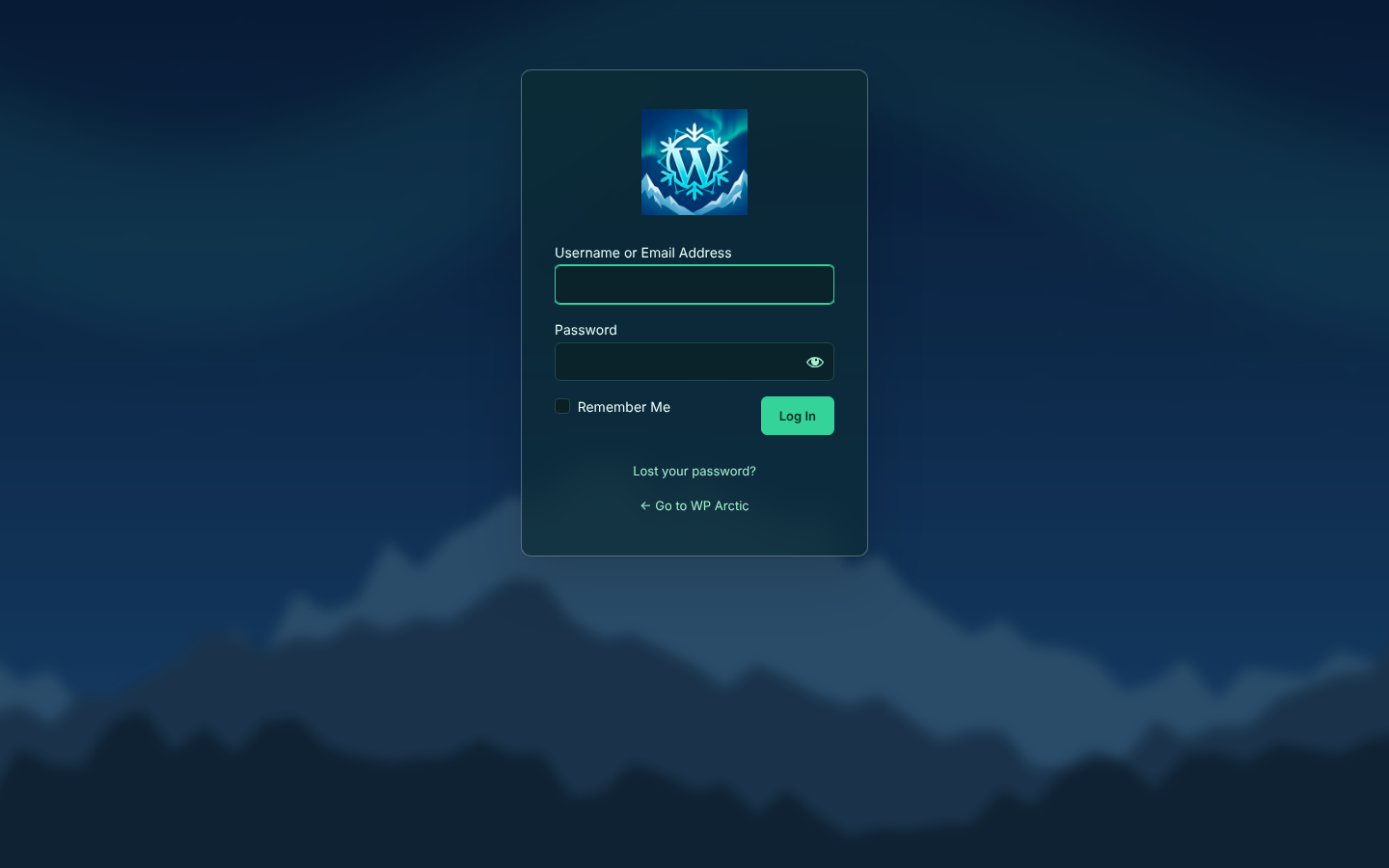
Frosted glass
A translucent card over a blurred background image.
Split – image left
Big image with headline on the left, form on the right.
Split – image right
The same, mirrored.
Minimal
No box, just underlined fields and a full-width button.
Locked out? There is always a way back
Add one line to wp-config.php and Arctic Login switches itself off, so /wp-login.php works again:
define( 'ARCTIC_LOGIN_DISABLE', true );
Using the .htaccess blocking? Open any page on the site once, and the plugin lifts its block too.
Frequently asked questions
Add this line to wp-config.php, above “That’s all, stop editing”:
define( 'ARCTIC_LOGIN_DISABLE', true );
The plugin switches itself off and /wp-login.php works again. If .htaccess blocking is on, open any page on the site once (e.g. the front page) so the plugin can remove its block first. Remove the line when you have logged in and checked your settings.
You can also rename the plugin folder via FTP or cPanel – the .htaccess rules stop working by themselves when the folder is gone. Or delete the lines between # BEGIN Arctic Login and # END Arctic Login in .htaccess. The original file is kept as .htaccess-arctic-login-backup.
New versions show up on the Plugins and Updates screens in WordPress like any other update, with “View details”, “Update now” and automatic updates. WordPress checks wparctic.com about twice a day; only the plugin name is sent, not your site’s address.
Clear the cache in your caching plugin, CDN and server, and test in a private window. Exclude the login address from page caching.
Yes. The My Account login form is a normal page and is not affected. Use the per-role redirects to send customers to My Account after login.
Yes. Hiding the login works in PHP and does not need .htaccess. The optional server-level blocking writes .htaccess rules, which Nginx ignores; on Nginx the settings page shows an equivalent rule to add to your server configuration.
Arctic Login is built and tested for single sites.
Requirements
- WordPress 6.5 or newer
- PHP 7.4 or newer
- Single site (multisite is not supported)
Changelog
1.2.0 · 1 November 2026
Updates from wparctic.com on the Plugins and Updates screens, with “View details”, “Update now” and automatic updates. Arctic Login now has its own item in the admin menu, next to the other Arctic plugins (was under Settings); old bookmarks are sent to the new page.
1.1.1
Plugin site link now points to wparctic.com.
1.1.0
Optional blocking of /wp-login.php and /wp-admin in .htaccess, switched on and off in the settings.
1.0.1
The design tab warns when the design is not switched on.
1.0.0
First version.
Take control of your login page
Install Arctic Login, choose your address, and switch it on when you are ready.